Blank columns
Views that filter on type or client showed nothing.
BoldBellowsGoogle Drive to SharePoint automation for organisations moving documents into Microsoft 365
Google Drive to SharePoint automation puts a document in a library together with the data that lets people find it. Drive notifications are empty, a SharePoint library lives or dies by its columns, and a file name that Drive allows can break SharePoint's rules. BoldBellows records the file ID, the drive ID and the change token before anything else happens, waits for a second read when the change and the file disagree, then cleans the name, uploads through Microsoft Graph, sets the content type and columns on the new item and keeps the Drive file ID in a column for later changes.
One-off setup from $900
No monthly subscription
Chapter 01 the dump-and-sort problem
Documents are dragged into a library in bulk. Every column is blank, so the views that depend on document type, client or year show nothing. A file name that Drive accepts ends with a character SharePoint refuses, a path becomes too long to open, and a library with thousands of items becomes slow because nobody indexed the columns that people filter on. The file ends up filed and unfindable.
The files arrived in SharePoint and nobody could filter them.
Views that filter on type or client showed nothing.
A character Drive allowed broke the upload.
Nested folders passed the path limit.
Before
After
Chapter 02 How it works
The route judges the change first, then finds the list item by its key and writes only what is missing.
The Google Drive event is verified, its account, resource and time are recorded, and the file change is tested against your written rule.
The change list is read, each name is made SharePoint-safe, and the folder or naming rule chooses the library, content type and column values.
The file is uploaded through Microsoft Graph, the columns are set on the new item, and the Drive file ID is kept in a column.
Chapter 03 What ships in the build
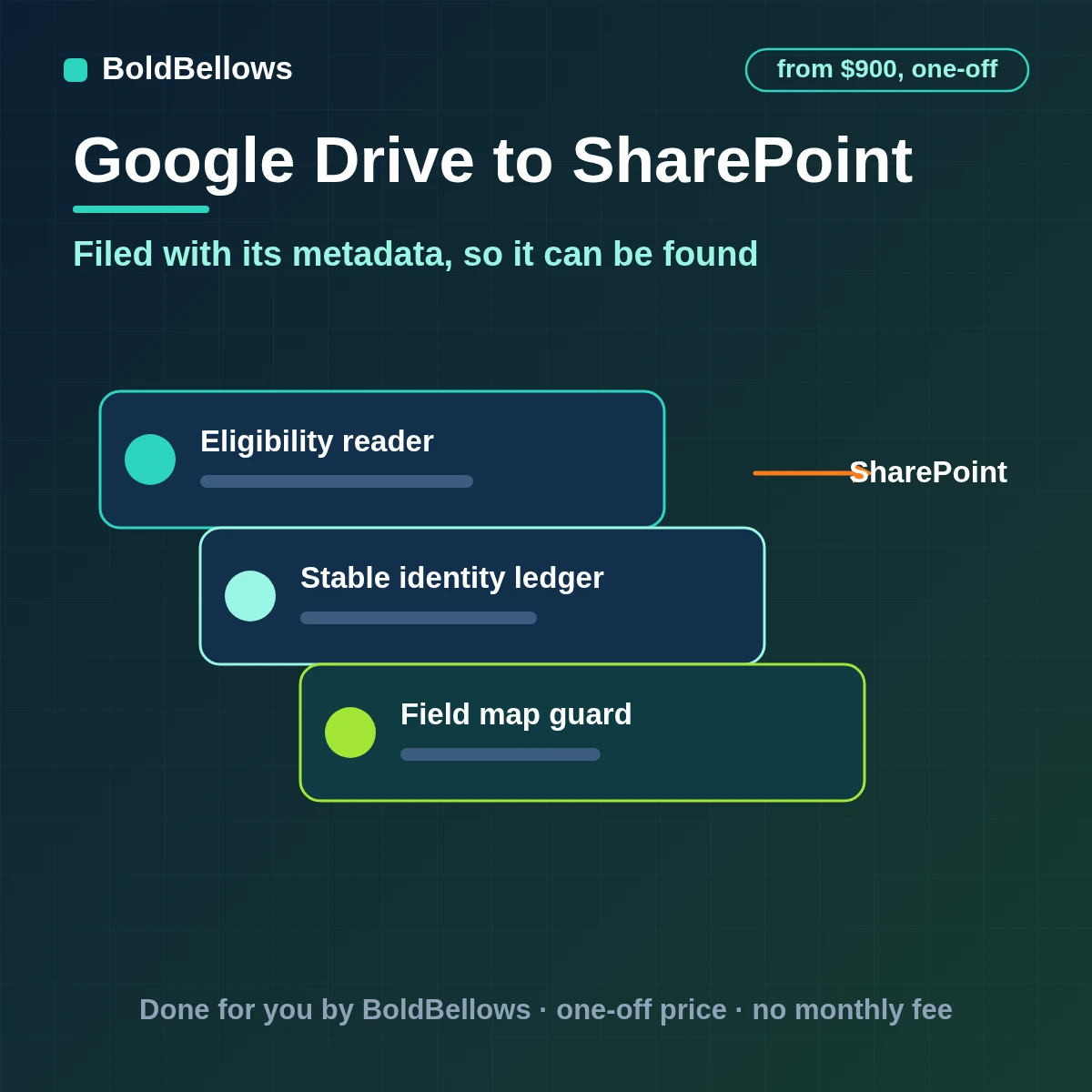
Essentials decides which changes count and fixes identity. Workflow builds and writes each list item. Control keeps watching SharePoint after launch.
Checks each incoming Google Drive file change against your written rule and records the verdict.
Maintains the link between a Google Drive record and its SharePoint twin, so updates land in the right place.
Only the Google Drive values on the written map are shaped for SharePoint; everything else stays where it began.
Cleans the file name and builds the content type and column values for each document from your rules.
Uses the Drive file ID kept in a SharePoint library column and the route's register to tell create, update, already done and unclear apart.
Chooses the site, library and content type by folder, document type and client.
Compares current Google Drive state with each list item and ages every difference.
Watches Microsoft's throttling responses and catches a changed column before filing starts to fail.
Lists every blocked, ambiguous or refused SharePoint write with an owner and an age.
File Google drive documents in sharepoint library sits alongside sharepoint metadata from Google drive and Google drive sharepoint migration in the written brief. Related searches include migrate Google drive to sharepoint, Google drive sharepoint automation, Google drive to sharepoint workflow, Google drive to sharepoint API integration, connect Google drive to sharepoint, Google drive to sharepoint Zapier alternative, Google drive to sharepoint integration, Google drive to sharepoint without Zapier, Google drive to sharepoint, Google drive sharepoint integration, Google drive to sharepoint implementation, Google drive to sharepoint setup service, Google drive to sharepoint duplicate prevention, Google drive to sharepoint consultant, Google drive to sharepoint service, sync Google drive with sharepoint, Google drive to sharepoint historical migration and Google drive to sharepoint error handling.
Chapter 04 Who this fits
Google Drive is where the file starts; SharePoint is where it should be found.
"Documents need metadata."
Columns for type, client and year are set as each file is filed.
"Keep the library fast."
The columns people filter on are indexed, so views stay quick.
"Show me what is filed where."
A register ties every item to its Drive file and its columns.
"Nothing may be filed twice."
The file ID in a column is checked before any upload.
"Each client has a site."
A client's documents are filed into the site and library built for that client.
"I want it findable, not just stored."
Search and views work because the metadata is there.
Chapter 05 The options
Each can store a file. Only one files it with the data that makes it findable.
| Question | uploading to a library by hand | A basic Google Drive to SharePoint Zapier zap | BoldBellows metadata-first filing route |
|---|---|---|---|
| What starts the work | Someone notices a change | Any configured event fires | A qualified file change passes an explicit admission rule |
| How identity is decided | Staff search names or email | A visible field is assumed unique | The file ID in a library column and the register |
| What reaches SharePoint | Whatever someone copies | A flat field bundle | One item per file, columns set, names made safe |
| After an uncertain result | Two people compare both systems | The task retries or stops | Looks up, compares, then repairs or assigns |
The event time is compared with the stored state, so a late Google Drive change is logged and cannot overwrite a newer list item.
The file is held, not filed blank, and listed with the missing field so a person can supply it and release it. The Drive file ID kept in a SharePoint library column and the route's register is searched and the candidate is compared with what was intended, then one of four results is recorded. Only an absent list item is ever created.
Connect Google Drive to SharePoint through the Drive file ID kept in a SharePoint library column and the route's register first; every list item and every repair check depends on it.
Interlude Libraries, columns and site structure set the price
Answer a few questions on scope and the total settles on a firm figure from $900.
One setup fee · Range shown first
Pick a package, answer three short questions about how Google Drive data should reach SharePoint, and your price and turnaround move as you choose.
Chapter 06 The process
Six steps, each with a named output, take the route from brief to a monitored launch.
About 30 minutes
We agree which folders go to which libraries, which columns each document type needs and how values are found.
Access review
The connections between Google Drive and SharePoint are made with limited, revocable permissions.
Most of the project
Content types, columns, indexed fields and the file-name clean-up rules are settled in writing before filing begins.
Before you review
Repeats, late events, missing values and permission loss are run against a test copy of SharePoint first.
Handover day
Once tests pass, the route goes live from a set checkpoint and the documentation is delivered.
About 30 minutes
For the first month we review the checkpoint log with you, look at retries and drift, and fix anything the real data reveals.
Chapter 07 Turnaround
Days are counted from approved access, not from Google Drive payment.
6 to 10 business days
10 to 16 business days
16 to 24 business days
Chapter 08 Getting started
Chapter 09 Trust
Think of it as a pipe with two labelled ends: Google Drive on one side, SharePoint on the other, and nothing kept along the way.
Google Drive and SharePoint are reached through their published interfaces; nothing inside either is changed.
Each connection has the narrowest permissions that work, recorded in the handover.
Only allowlisted values reach SharePoint. Notes, payment details and other Google Drive data stay in Google Drive.
A retry reads SharePoint by the Drive file ID kept in a SharePoint library column and the route's register first, so a doubtful reply never turns into a second list item.
Diagnostic records are deliberately thin, so there is little to protect.
There is no lock-in; the notes explain every setting we chose.
"A library works when files arrive with their metadata, so the build writes the columns with the upload."
Steven GrratFounder, BoldBellows
Chapter 10 In their words
Verified reviews from business owners who use BoldBellows automations every day, from marketing and data to support and operations.
AI Document & Contract Automation
Onboarding was slow because we wrote every contract by hand. BoldBellows automated the lot: contracts, welcome emails and client setup.
What took 48 hours now takes under 10 minutes, and clients regularly tell us how professional it feels.
AI Customer Journey Automation
We wanted a smoother path from first contact to purchase. BoldBellows built an AI system that guides each customer there automatically.
It sends personalized messages, recommends products and follows up at just the right moment. Customer retention has improved dramatically.
AI Data Entry & Reporting Automation
We used to spend hours collecting data and building weekly reports by hand. BoldBellows automated all of it.
The reports are clean, visual and easy to read, and our managers rely on them for quick decisions. Human error is gone and our numbers are more accurate across the board.
AI E-commerce Listings Automation
BoldBellows automated our product listings. The AI writes descriptions, organizes photos and publishes listings across several marketplaces.
It even answers customer questions instantly. Our store looks more professional and sales have noticeably increased.
AI Social Comment & DM Automation
We get thousands of comments and messages every week. BoldBellows built an AI system that replies instantly, filters spam and surfaces the important ones.
Engagement is up and our page looks active around the clock. It’s like having a full social media team that never stops.
AI CRM Automation
Our CRM was barely used because updating it by hand was tedious. BoldBellows automated data entry, tagging, segmentation and follow-ups.
Now the CRM is always up to date and our campaigns are far more accurate. It improved our whole sales pipeline.
AI Voice Assistant
BoldBellows built a custom AI voice assistant for our customer hotline. It answers questions, books appointments and handles simple requests.
Customers love how fast it is, and our call-centre workload dropped dramatically. One of the smartest upgrades we’ve made.
AI Automation Partner
BoldBellows is hands-down the best AI automation partner we’ve worked with. Their systems are fast, reliable and built around how our business actually works.
Every automation they’ve delivered, from customer service to content, runs flawlessly. We’ve saved time, cut costs and grown faster than we expected.
AI Chatbot & Customer Support
BoldBellows built an AI support chatbot for our online boutique, and it has changed how we run the business. We used to have two full-time staff answering the same questions all day. Now the AI handles order tracking, product recommendations and even refund requests on its own.
What surprised me most is how natural it sounds. Customers compliment the ‘agent’ without realizing it’s AI. Our support workload dropped by 75% and customer satisfaction went up dramatically.
AI Content & Social Media Automation
Our marketing agency couldn’t keep up with content. BoldBellows set up an AI content engine that writes blog posts and captions and even designs our social media creatives.
It spots trends and suggests topics for us, so we stay ahead of competitors. We now produce three times the content with the same team, and engagement has soared. They didn’t just automate our workflow, they lifted our whole brand.
AI Lead Qualification & Sales Automation
Our sales team wasted hours chasing cold leads. BoldBellows built an AI lead-scoring system that reads behavior, email engagement and buying signals.
It filters out weak leads and sends personalized follow-ups automatically, so our team only talks to people who are ready to buy. Conversions rose 40% in the first month. It paid for itself straight away.
AI Video & Voice Automation
We publish product videos every week, and BoldBellows introduced us to AI video automation. The system writes the script, voices it and produces the finished video in minutes.
The quality is remarkable: professional voiceovers, clean visuals and smooth editing. Production time went from three days to under 30 minutes, and we scaled our video marketing without adding cost.
AI Email & Smart Inbox Management
Our inbox used to be chaos. BoldBellows built an AI email system that sorts messages, drafts replies and flags anything urgent.
It learns how we write and gets better every week. We reply faster and no longer miss important messages. It feels like having a personal assistant working around the clock.
AI Workflow Automation for Agencies
Running a digital agency with many clients was overwhelming. BoldBellows built one automation dashboard that tracks tasks, sends updates and creates client reports automatically.
Clients love the transparency and we love the time we get back. Productivity is up, and project delays have dropped to almost zero.
AI Booking & Scheduling Automation
Our coaching business needed a better way to schedule. BoldBellows automated all of it: bookings, reminders, cancellations and follow-ups.
No-shows fell by 60% and clients enjoy how smooth it is. It feels personal, not robotic. One of the best upgrades we’ve made.
AI Translation & Localisation
When we expanded abroad we needed fast, accurate translations. BoldBellows built an AI translation system that turns our content into several languages instantly.
The translations read naturally and suit each culture. We now serve customers in five new countries without hiring translators. BoldBellows helped us go global.
AI HR & Recruitment Automation
Our HR team was drowning in applications. BoldBellows automated screening, skills-based filtering and interview scheduling.
It saves us hours every week and means we only interview qualified people. Hiring is now faster, better organized and more professional.
AI Accounting & Invoice Automation
BoldBellows automated our whole invoicing process: creating invoices, sending reminders and tracking payments.
Late payments dropped sharply, and our accounting team finally has time for strategy instead of repetitive admin. Worth every penny.
Chapter 11 Questions
Read these first; whatever is left can be asked in your quote request.
If you only need every file in the library, a zap will do it. It will not set the columns with the upload, keep names within SharePoint's rules or stay inside Microsoft's throttling. Closing those gaps is what this build is for.
From rules you approve: the folder, a naming pattern or a property of the file. The values are written to the item as it is created, not left for someone to fill in later.
The route cleans the name by your rules, keeps the original name in a column and shortens a path that would be too long, so the file uploads and can still be traced.
The Drive file ID is kept in a library column and in the register. Before any upload the route looks for it, so a re-run files nothing new.
It is held, listed with the missing field, and released once a person supplies the value, so nothing is filed blank.
The route indexes the columns people filter on, uploads in measured batches and honours Microsoft's Retry-After header when it is throttled.
No. Filing is one-way, so editing or deleting an item never reaches back to the Drive file.
Yes, and it is part of every package: our Google Drive SharePoint field mapping service assigns each Google Drive field a destination, a type and a format for your sign-off before the build starts.
Yes. The route is built around your logic, so it is a custom Google Drive workflow for SharePoint with a Google Drive SharePoint integration consultant's care behind it, from $900.
If the platforms change, the route degrades gracefully: it holds the affected record and flags it. Follow-up support once your review window ends is quoted on its own. This page also answers searches for custom google drive to sharepoint automation.
We shape the route that will automate Google Drive data to SharePoint and show the price first, from $900.